Add and edit every DNS record type NameBright supports, change your nameservers, set up subdomains and URL forwarding, and turn on DNSSEC.
Add, Edit, and Delete a TXT Record for SPF
GUIDE-7.6 · 1 min · Updated September 2026
An SPF record lists which mail servers are allowed to send email on your domain's behalf. It's a TXT record with a specific format.
To add an SPF record:
Log in to your NameBright account.
Go to Domain Manager and select a domain.
Under the DNS section, select Manage DNS Records .
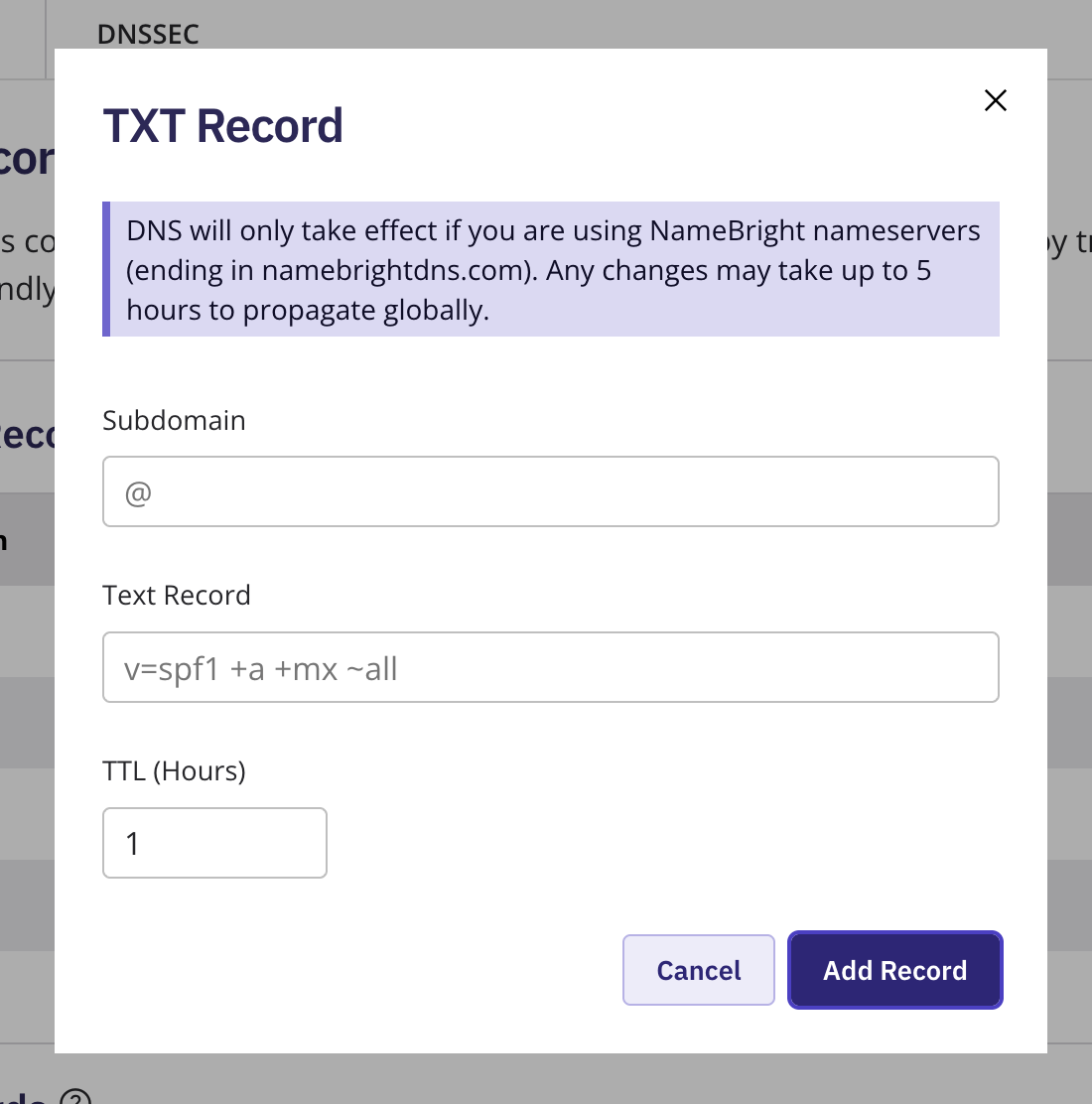
Select Add New DNS Record , choose TXT , and select Continue .
Enter the Hostname (usually @ ) and the value in SPF format, for example: v=spf1 include:_spf.google.com ~all — use the include your mail provider specifies.
Set the TTL and select Add Record .
A domain should have only one SPF record. Adding a second can keep mail servers from evaluating either correctly.
To edit the record, select it, select Edit , update the value, and select Update Record . To delete it, select the record, select Delete , and confirm.
Update DNS Records in Bulk
To manage DNS records on multiple domains at once, go to Domain Manager , switch to Advanced view, and select the domains you want to edit. Once at least one is selected, the bulk action buttons above the domain table become active. Select the DNS bulk action button, then edit the setting the same way you would for a single domain. Save your changes. NameBright applies the update to every domain you selected.
Update DNS Records on a Category
To manage DNS records for every domain in a category at once, go to My Categories , select the category, open Category Settings , and enable DNS Records there, then edit the setting the same way you would for a single domain. Save your changes.